Bharat Vakil Diary
Bharat Vakil Diary
by MAK Online Solutions
Illustrated product brochure

Bharat Vakil Diary

Simplifying Legal Operations for Modern Advocates

A complete practice manager for the advocate's desk — case management, court-document automation, hearing and limitation tracking, fees and billing — installed on your own computer and working fully offline.

Getting started

Everything between downloading the app and having it open on your desk. It is a short path: install, activate once, choose where documents are saved.

The trial, and how to get an activation key

Bharat Vakil Diary is sold as a licensed desktop application. You can try it before buying, and the trial is the same application — not a cut-down preview.

1. Download the free trial

The trial build is on the product site at bvd.makos.app. It installs and runs exactly like the full application, on a free evaluation period, so you can enter real matters and generate real documents before deciding.

2. Ask for a licence

When you are ready, request a licence — from the product site, or without leaving the app, using Don't have a key? Request a licence on the activation screen. You receive an activation key that looks like ADVS-XXXX-XXXX-XXXX.

3. Activate once

Enter the key on the activation screen and click Activate. This is the one moment the application needs the internet. From then on it runs entirely offline.

No internet at the desk?

Use Activate manually with a licence file. Send us the computer ID it shows, with your activation key, on WhatsApp or by email — both are on that screen. We send back a licence file made for that computer; open it and the application is activated.

Changed computer?

A licence is tied to one computer. Enter the same key on the new machine and choose Move it to this computer, or release the old device from the web portal.
The activation screen

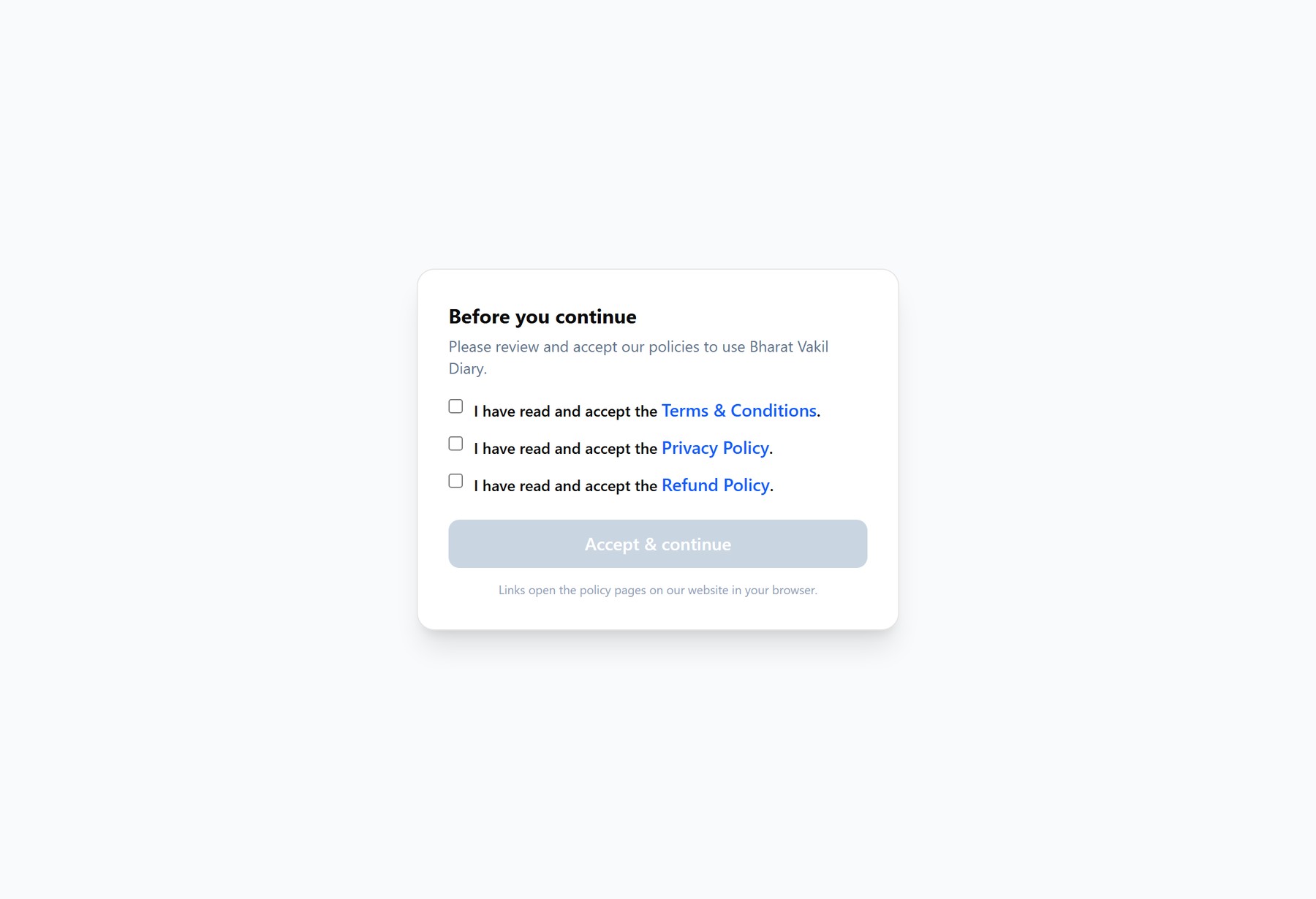
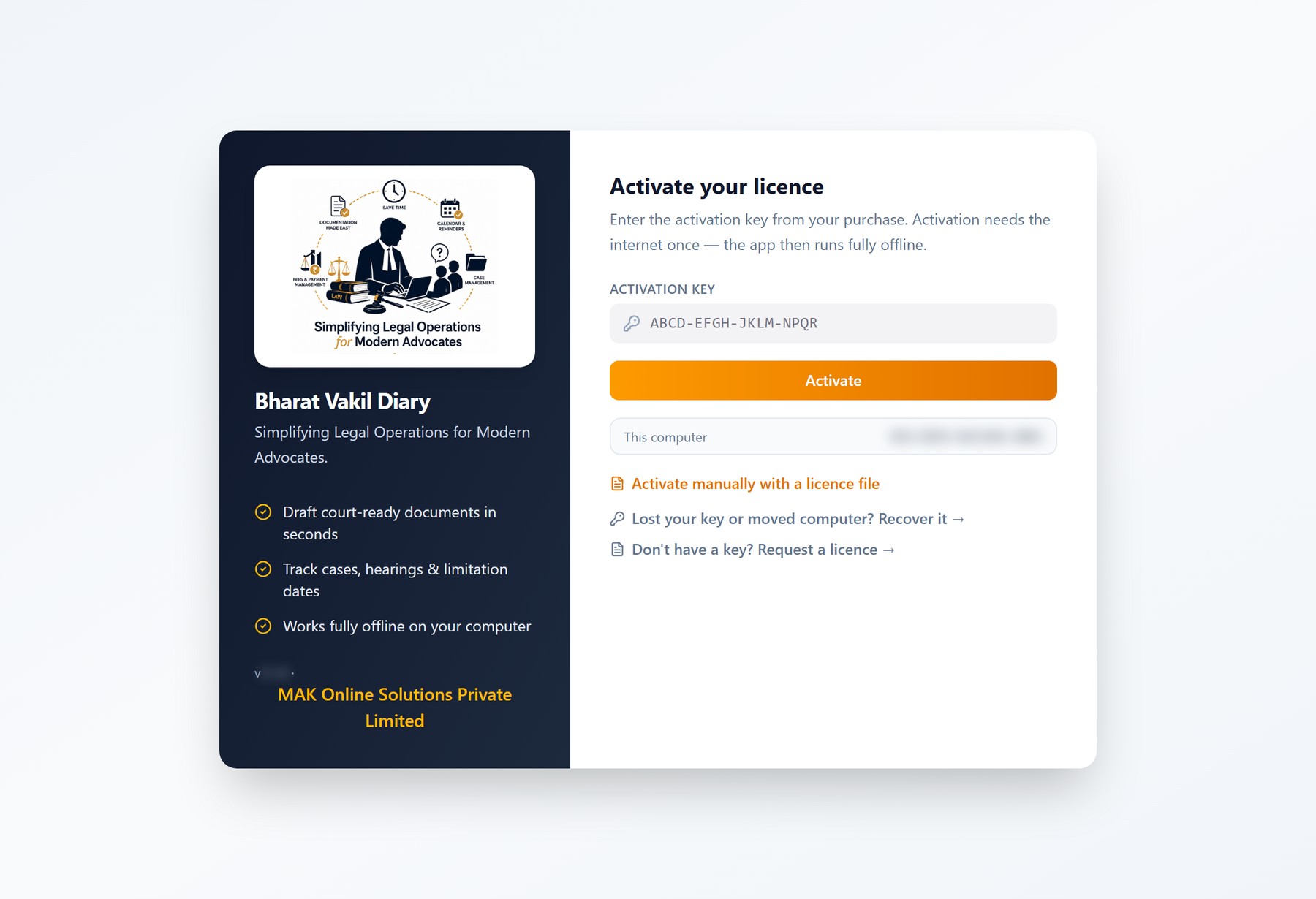
The first screen after installation. Every route to a working licence starts here — a purchased key, a licence file, a moved computer, or a request for a new licence.

The activation screen1234
  1. Enter the activation key from your purchase — the ADVS-XXXX-XXXX-XXXX code sent to you.
  2. Activate. This is the only step that needs the internet; afterwards the application works offline.
  3. This computer's identity. The licence is tied to it, which is what stops one key being shared around an office.
  4. Other routes: activate with a licence file when there is no internet (next page), recover a lost key or move it to a new computer, or request a licence.
  • The licence is stored on the computer, so the application opens straight into your practice from the second launch onward.
  • The trial uses this same screen — activate a purchased key at any point without reinstalling or losing the matters you already entered.

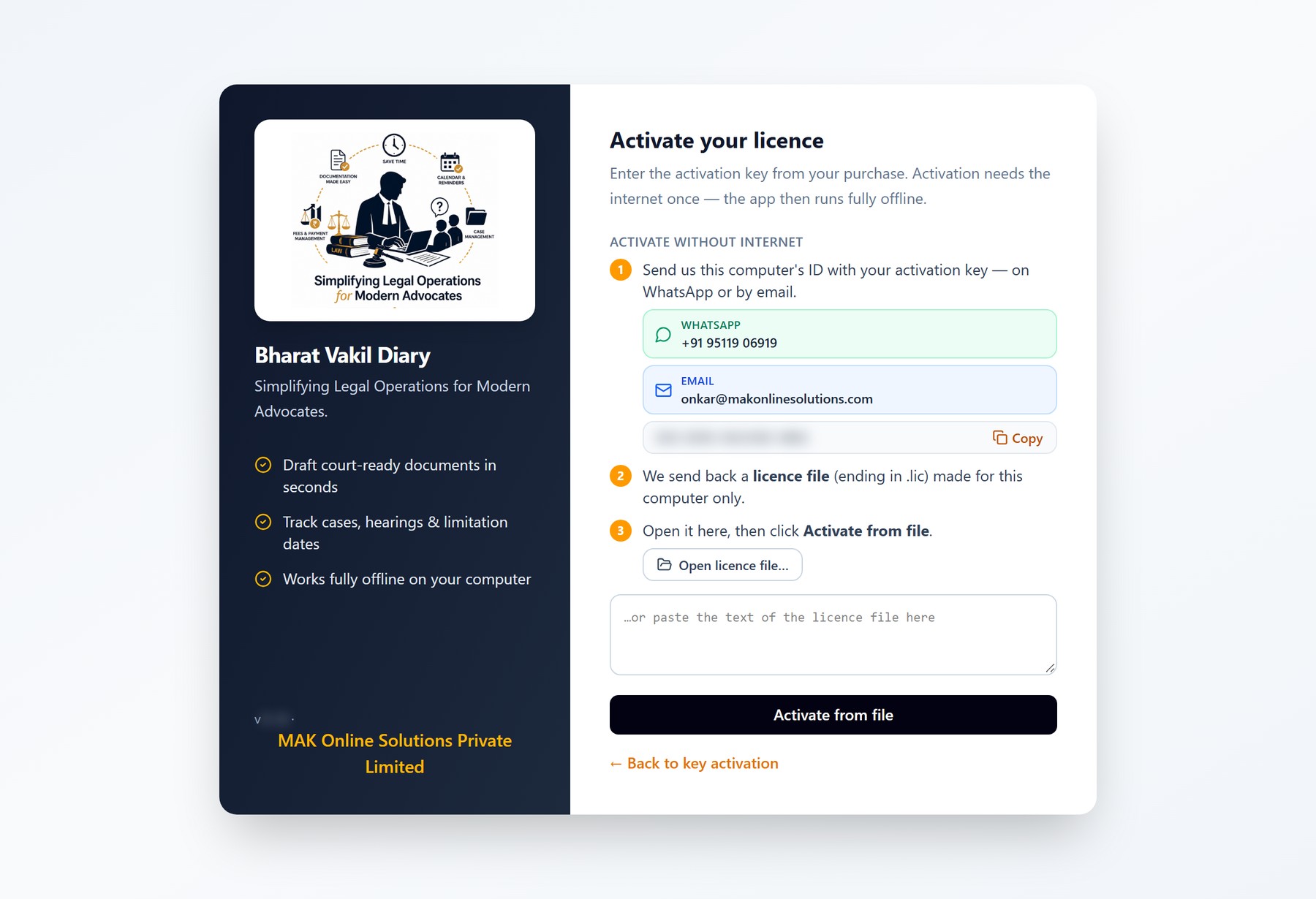
Activating without internet

For an office with no connection: three steps, with our WhatsApp number and email right on the screen.

Activating without internet1234
  1. Send us this computer's ID with your activation key — on WhatsApp or by email. Either one opens with the message already written.
  2. Or copy the computer ID and send it however you prefer.
  3. We reply with a licence file made for this computer only. Open it here — or paste its text into the box below.
  4. Activate. No internet is needed at any point.
  • The licence file works only on the computer whose ID it was made for; copied to another computer, it is refused.

Choosing where your practice is kept

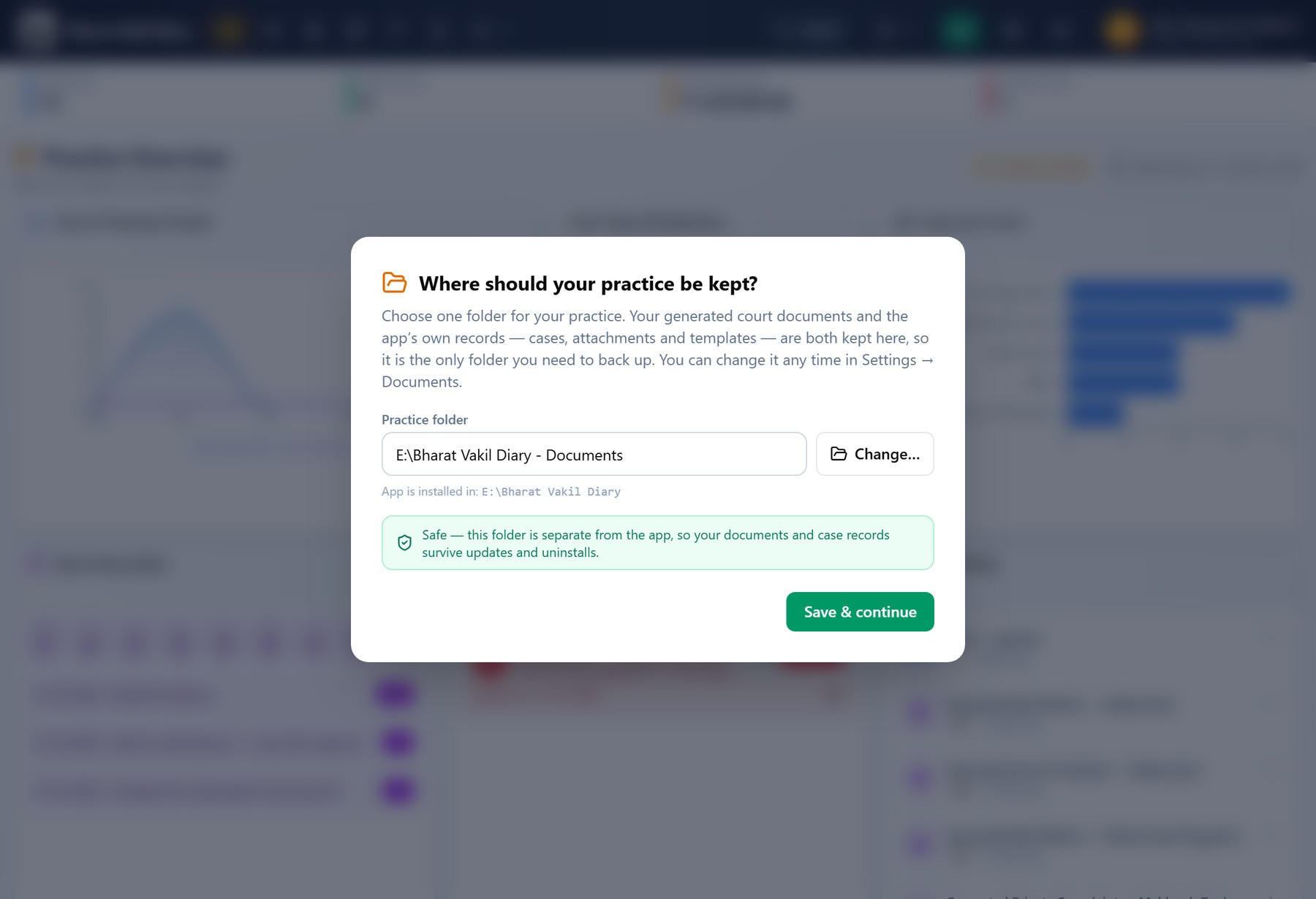
Asked once, on first run. One folder holds your generated documents and the application's own records — so it is the only folder you need to back up.

Choosing where your practice is kept12345
  1. Your practice folder. A sensible default is suggested for you.
  2. Change it now — or later, at any time, in Settings → Documents.
  3. Shown for reference: where the application itself is installed.
  4. The suggested folder sits OUTSIDE the application's folder, so your documents and records survive updates and uninstalls.
  5. Save and continue. You are asked this once.
  • Your whole practice lives in this one folder — matters, documents and templates. Copying it to a USB drive or a cloud-synced folder is a complete backup.
  • Choose a drive with room to grow. Generated documents accumulate over the years.

Your practice at a glance

The three screens you will spend most of the day in: what is happening across the practice, the list of matters, and everything held against a single matter.

Dashboard — Practice Overview

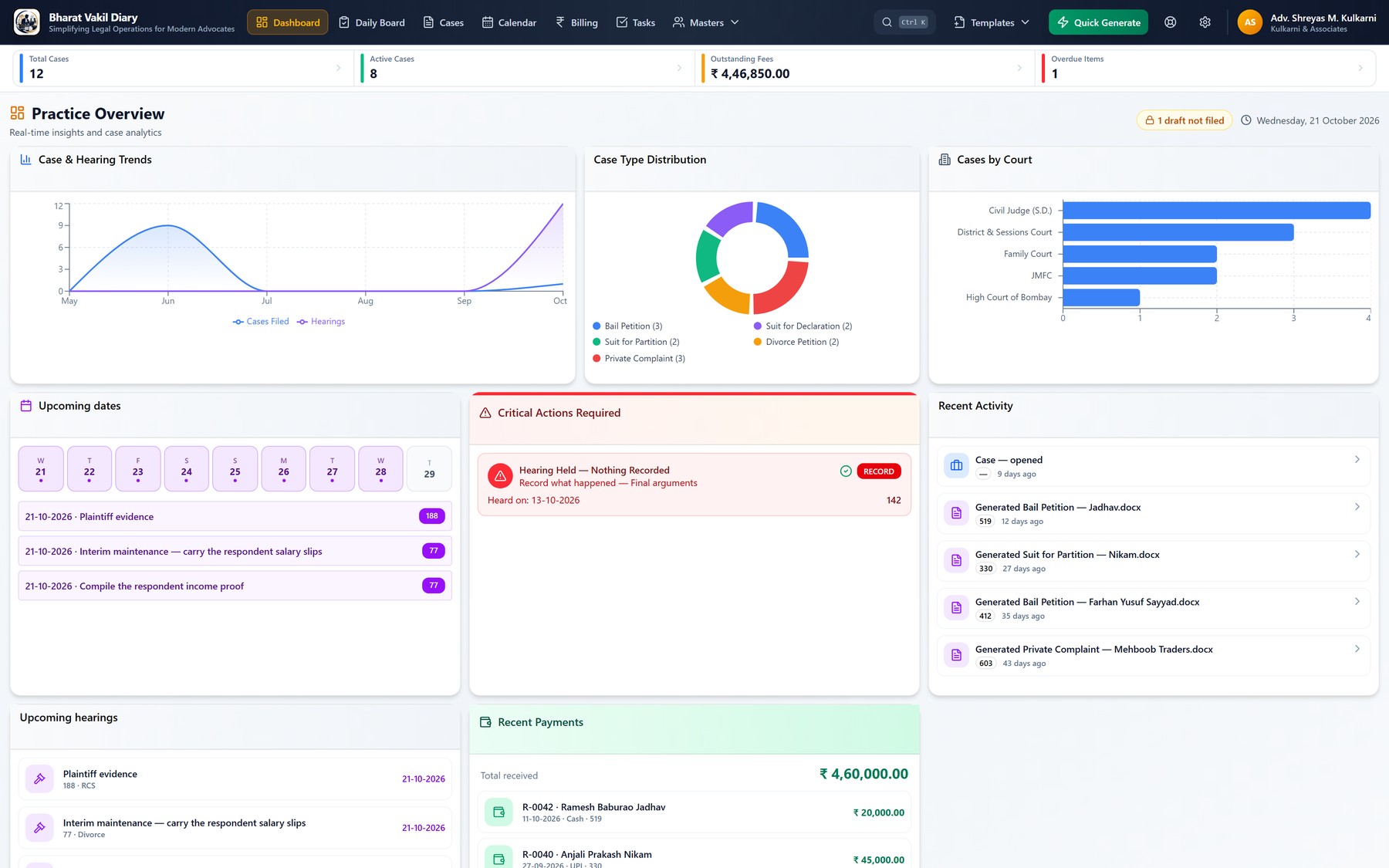
The screen the application opens on. It answers the questions an advocate asks at the start of the day: what is listed, what is overdue, and what is owed.

Dashboard — Practice Overview123456
  1. Total and active matters, counted from your own case list. These figures stay on every screen — click one to open the list behind it.
  2. Outstanding fees across the whole practice — what you have billed and not yet received.
  3. Filings and hearings plotted over the months, so the shape of the practice is visible.
  4. The dates coming up, day by day, each linked to its matter.
  5. Critical actions — anything overdue, or a hearing with nothing recorded, called out in red.
  6. Recent activity: every document generated and every matter opened, most recent first.
  • Case-type and court breakdowns show where the practice is concentrated.
  • Every card and row is clickable and opens the matter behind it.

Cases — the whole practice in one list

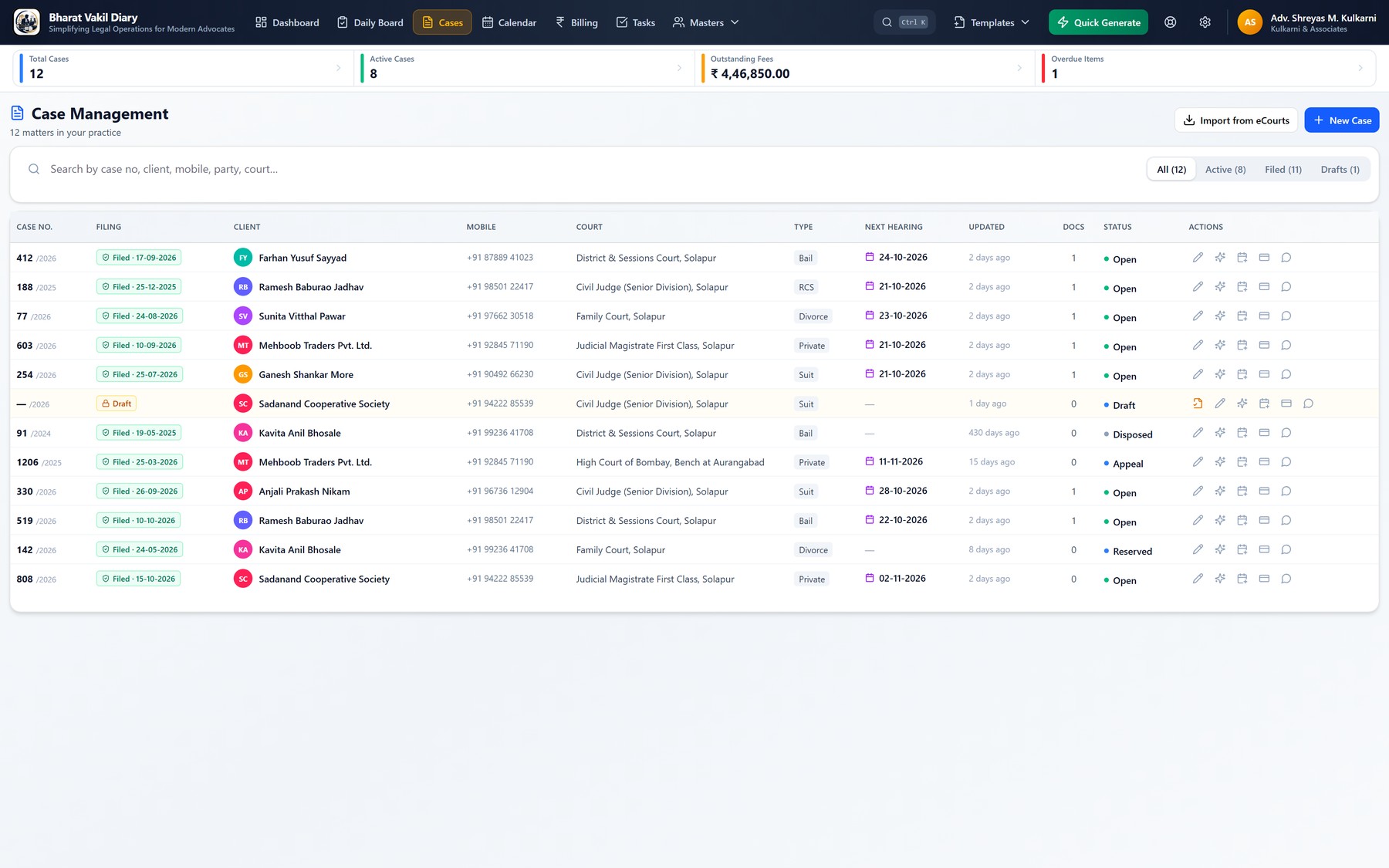
Every matter, filed or draft, with the details that matter from across the room: case number, client, court, next hearing and status.

Cases — the whole practice in one list123456
  1. One search box across case number, client, mobile, party name, court — and the CNR.
  2. Filter to everything, active matters, filed matters, or drafts.
  3. Bring matters in from eCourts by CNR — see the next page.
  4. Case number and year, with the date it was filed — or a Draft badge if it has not been.
  5. The next hearing for each matter, so the week reads itself.
  6. Status: Open, Draft, Disposed, Reserved or Appeal.
  • A matter stays a Draft until a court case number is recorded against it — which keeps unfiled work visibly separate from filed work.
  • New Case captures the matter, its client and the document's particulars in one pass.

Importing your cases from eCourts

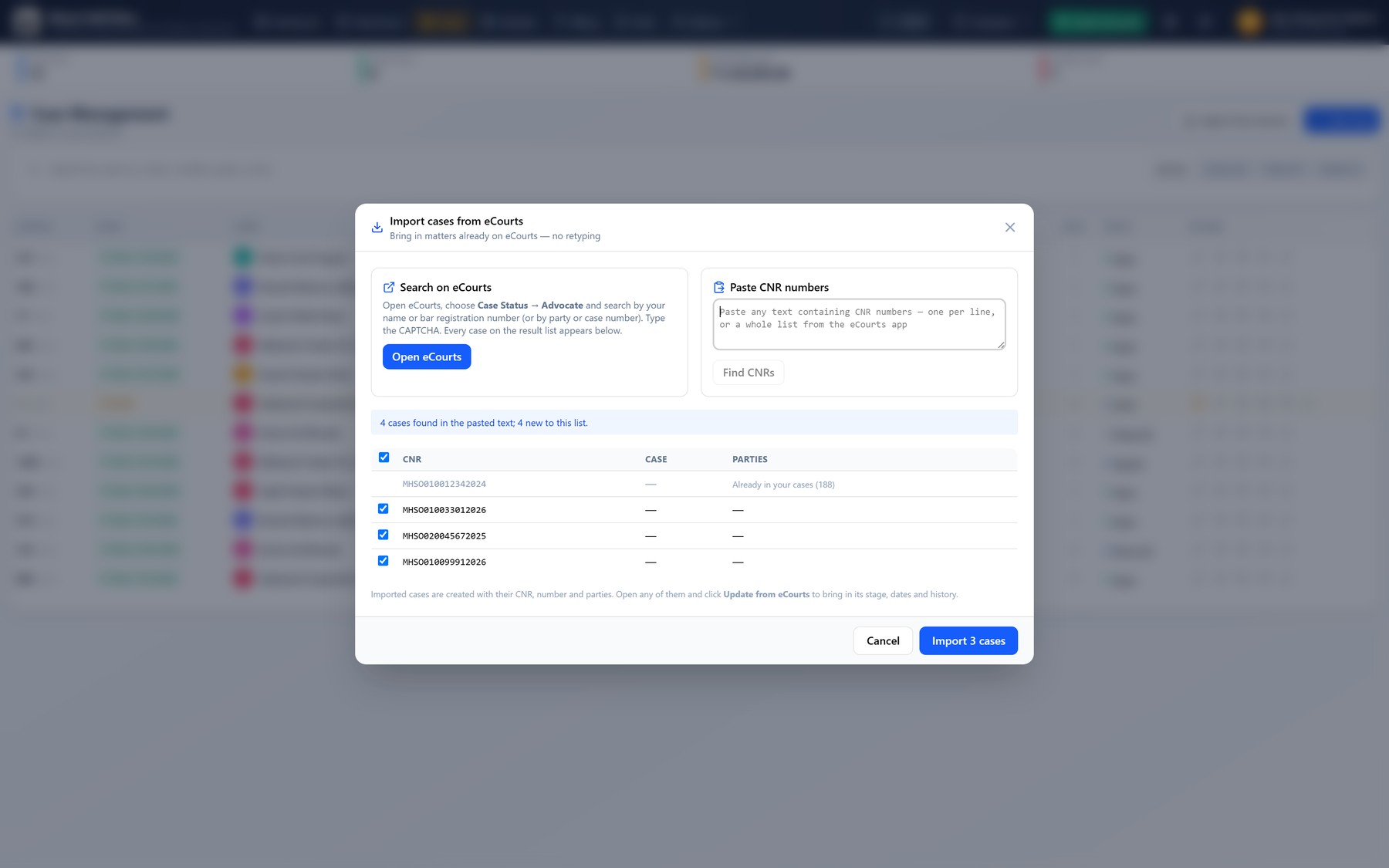
Matters already on eCourts come in without retyping — by CNR, or from an eCourts search inside the application.

Importing your cases from eCourts123
  1. Search eCourts inside the app — by your name or bar registration number. You type the CAPTCHA; every case on the result list is offered.
  2. Or paste CNR numbers — from the eCourts app, an order, a spreadsheet, in any layout.
  3. Import the new ones. Matters already in your diary are recognised and skipped.
  • Each imported matter carries its CNR. Open it and use Update from eCourts for its stage, dates and parties.

Inside a case

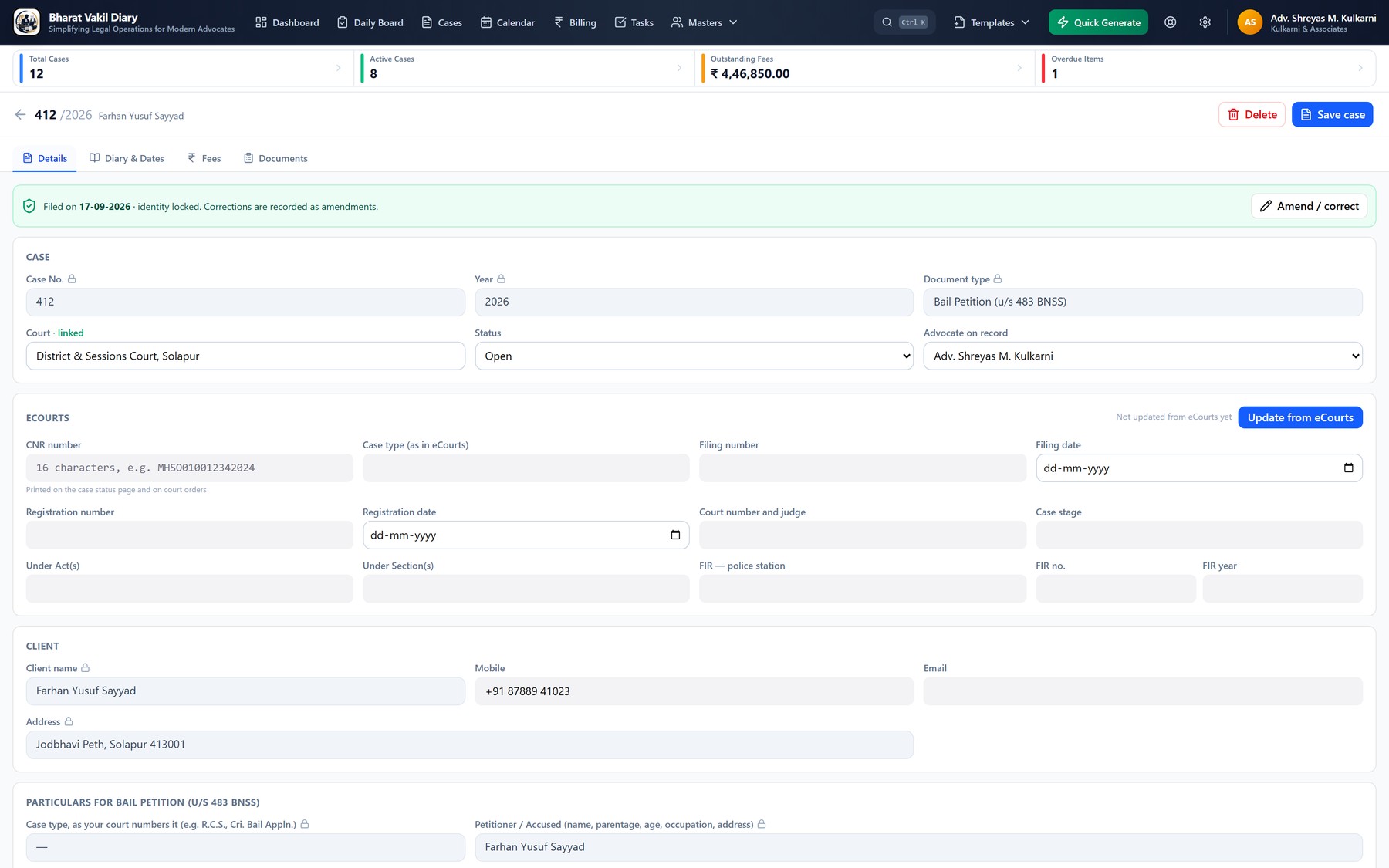
One matter, with everything held against it behind four tabs — the record, the diary and dates, the money, and the documents generated from it.

Inside a case12345
  1. Details, Diary & Dates, Fees and Documents — the whole matter, without leaving the screen.
  2. Once filed, the matter's identity is locked. Corrections are recorded as amendments rather than silently overwritten.
  3. The court is linked to a court record, so it is spelled the same way on every document.
  4. The CNR and eCourts details. Update from eCourts reads the case page and offers each change for you to accept.
  5. A padlock marks a field that is part of the filed record and can only be changed by amendment.
  • The Diary & Dates tab holds the order sheet — what happened on each date — and the next date given there becomes the next hearing.
  • A filing checklist, attachments and a full history of the matter live here too.

Never miss a date

Hearings, follow-ups and limitation deadlines, in a calendar built for a cause list rather than for meetings.

The Daily Board

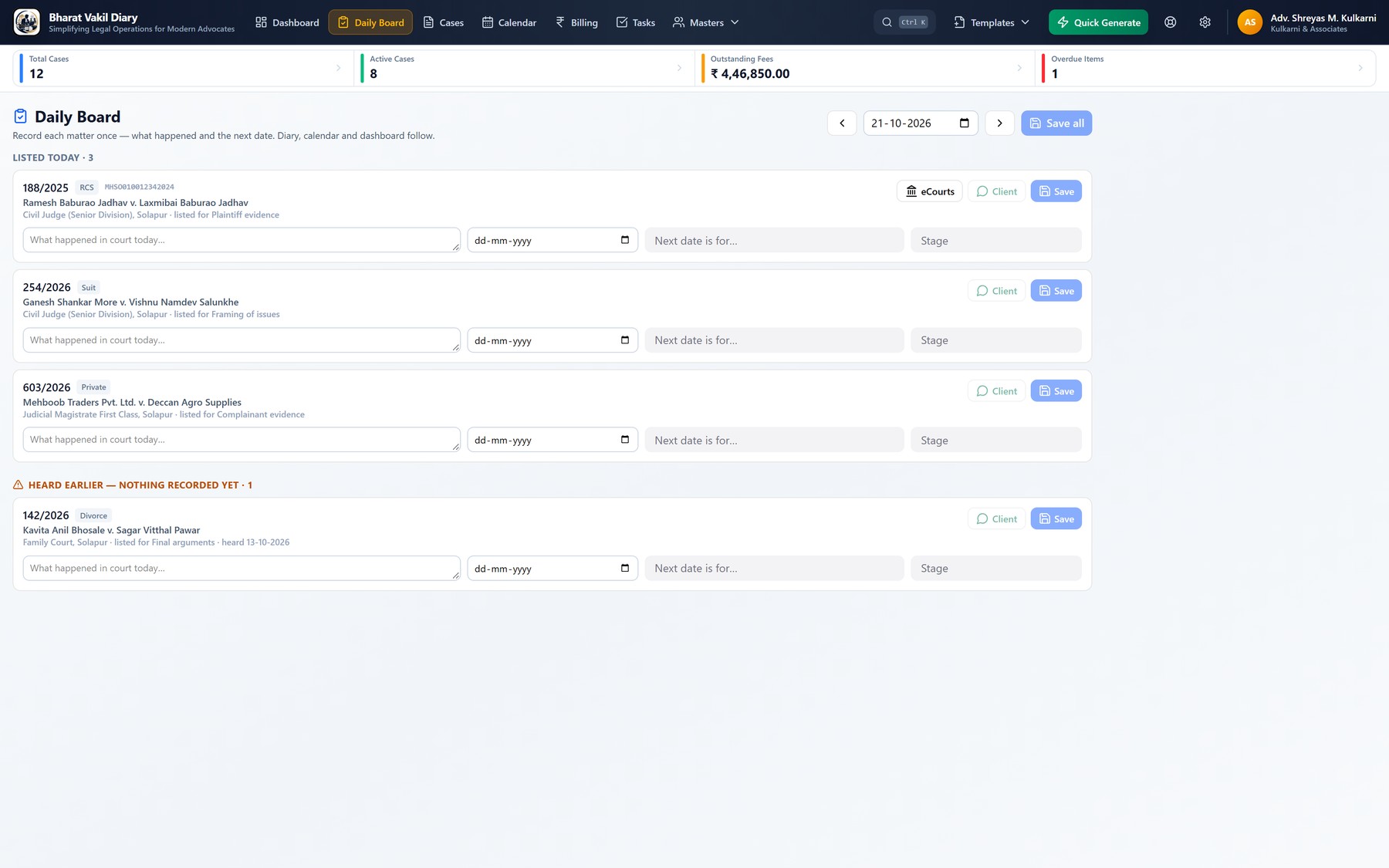
Back from court, record each matter once: what happened, the next date and what it is for. The diary, calendar and dashboard all follow from that one entry.

The Daily Board123456
  1. Every matter listed today, with what it was listed for.
  2. What happened in court.
  3. The next date and what it is for — it becomes the matter's next hearing.
  4. Save each row, or all of them at once.
  5. A matter on eCourts: read its case page and accept the updates.
  6. Hearings that went by with nothing recorded wait here until you record them.
  • Client sends the next date to the client on WhatsApp in one click.
  • Once a day the application reminds you of the day's work; clicking the reminder opens this board.

Calendar

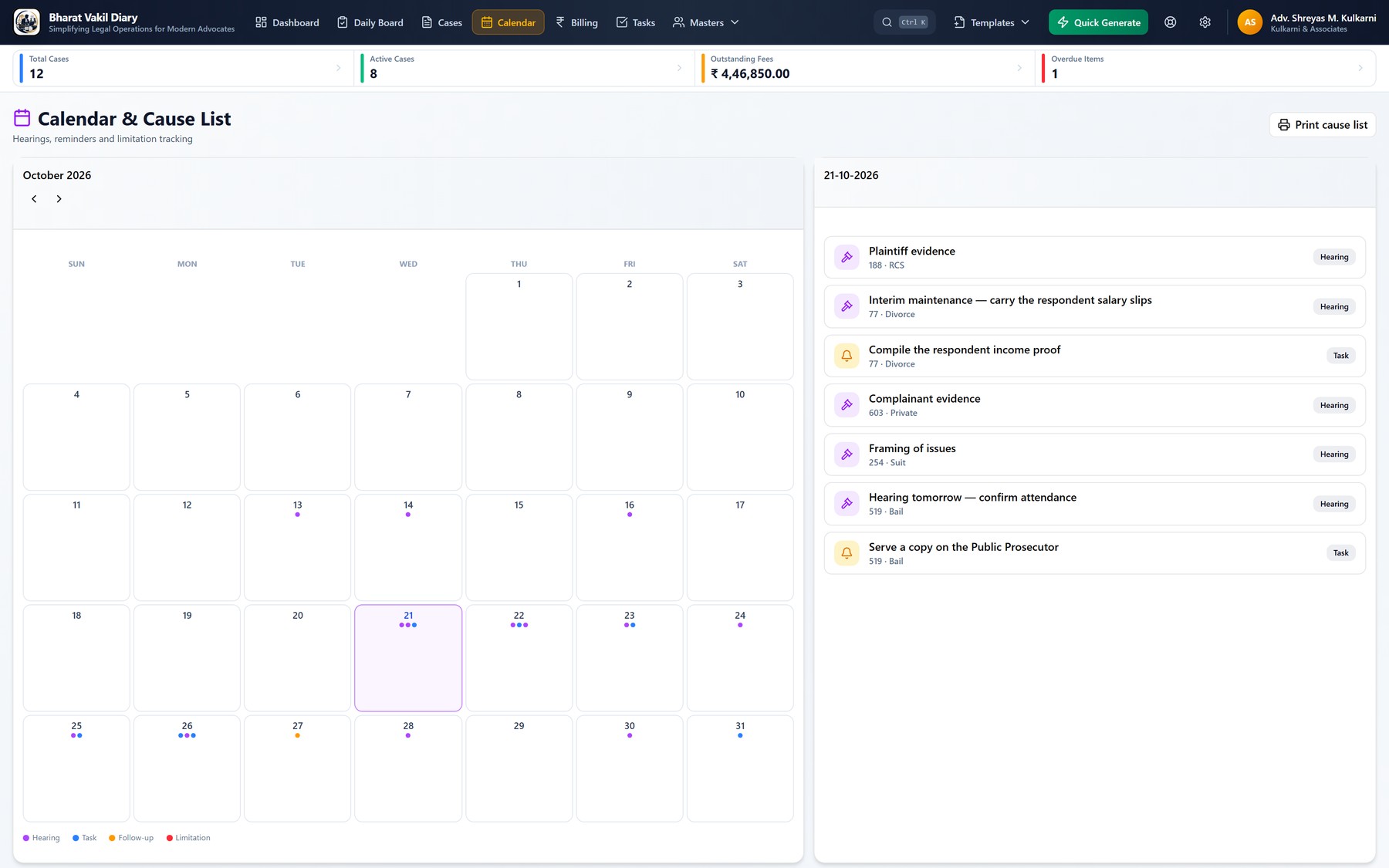
A month at a time, with coloured dots for hearings, tasks, follow-ups and limitation dates. Click any day to see exactly what it holds.

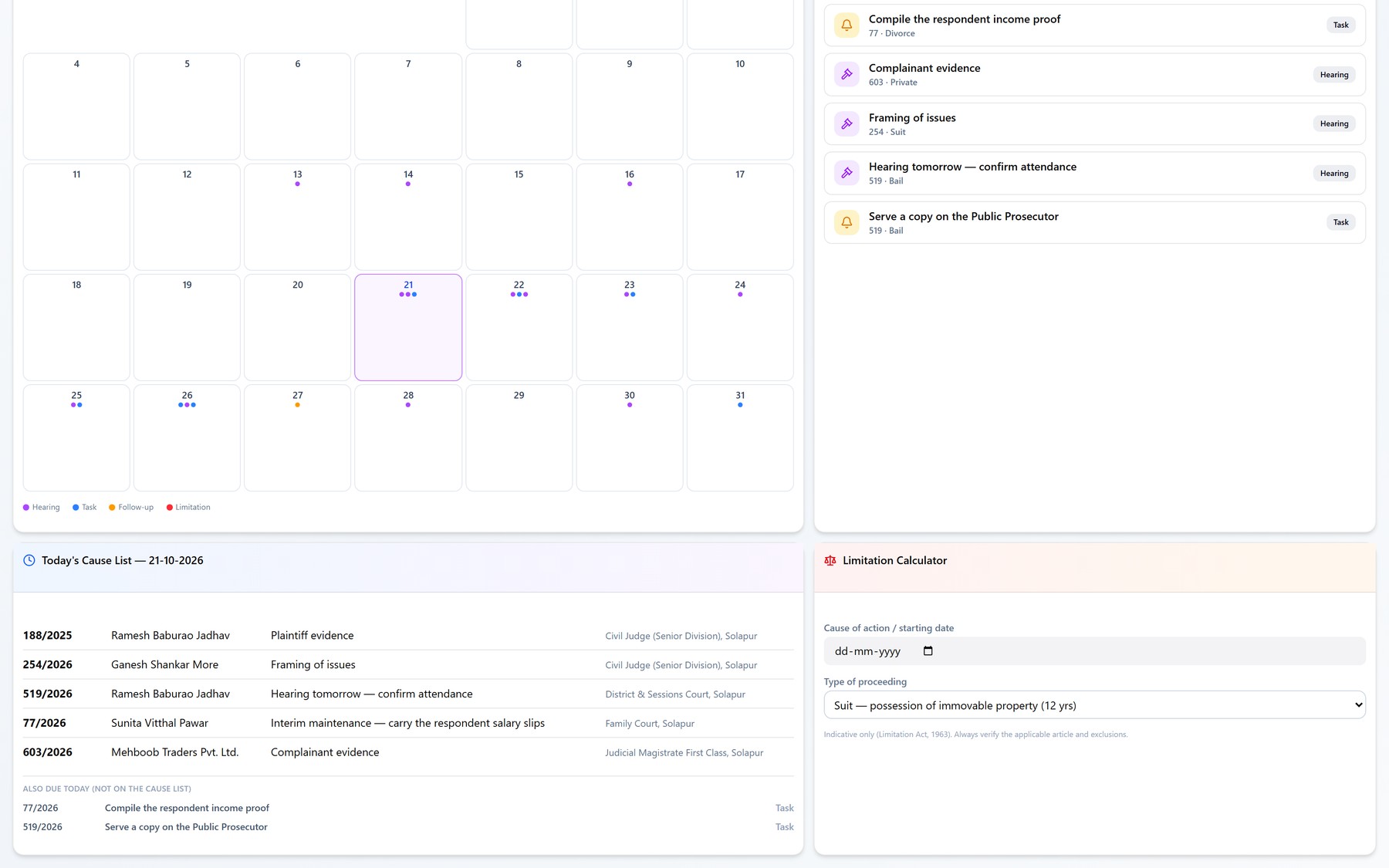
Calendar1234
  1. The month, with a coloured dot for every commitment on that day.
  2. The selected day, itemised — each entry naming its matter and type.
  3. Print the cause list for the day, to carry to court.
  4. The legend: hearing, task, follow-up and limitation each have their own colour.
  • Dates come from the matters themselves — record a next date on the Daily Board or in a case and it appears here.
  • Once a day, a reminder lists the day's work; clicking it opens the Daily Board.

Today's cause list and the limitation calculator

Below the month: everything listed today in one printable list, and a calculator for working out a limitation deadline.

Today's cause list and the limitation calculator
  • Today's cause list gathers every matter listed for the day, ready to print and carry.
  • The limitation calculator takes a starting date and a type of proceeding, and returns the deadline and the days remaining.
  • Limitation dates added to a matter appear on the calendar in their own colour, so they are never confused with a hearing.

Tasks

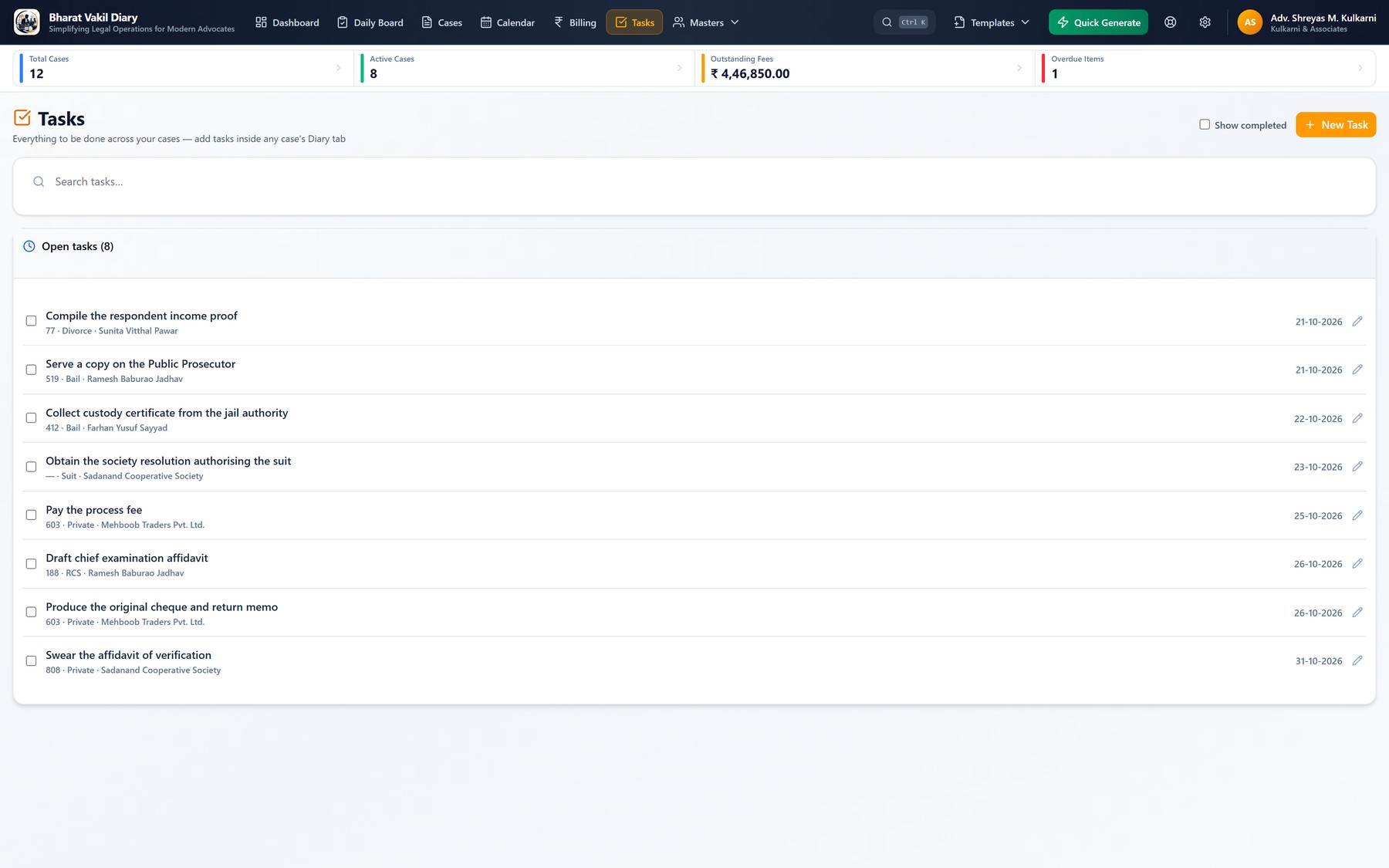
The small things a matter depends on — a process fee to pay, an affidavit to get sworn, a certificate to collect — tracked against the matter they belong to.

Tasks
  • Each task carries a due date and the matter it belongs to, and appears on the calendar and the dashboard.
  • Overdue tasks are surfaced in Critical Actions on the dashboard rather than waiting to be noticed.

Fees, bills and receipts

What was agreed, what was billed, what came in, and what is still owed.

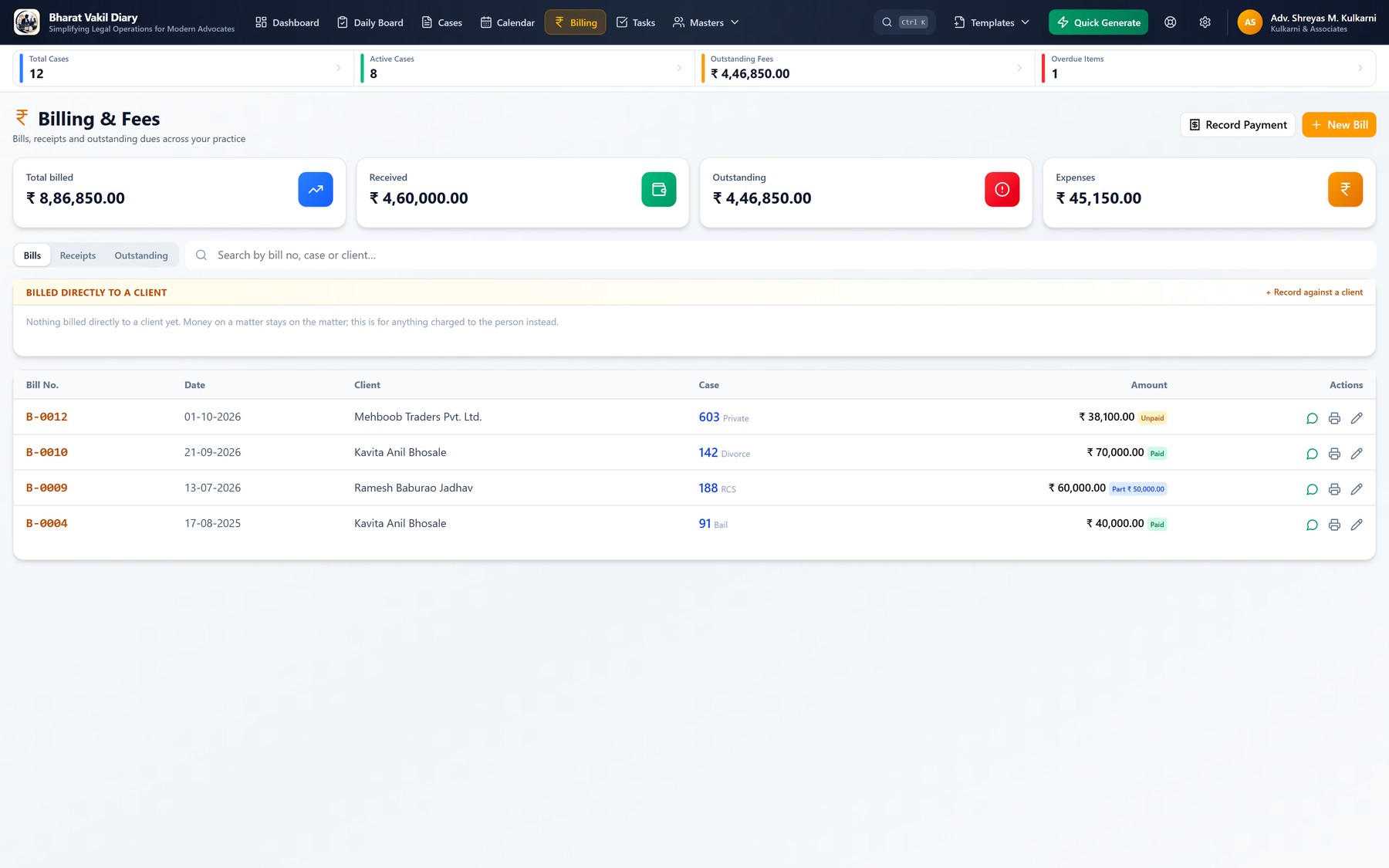
Billing & Fees

Bills, receipts and outstanding dues across the whole practice, and against each matter individually.

Billing & Fees12345
  1. Total billed across the practice.
  2. Outstanding — billed and not yet received. The number worth looking at every week.
  3. Switch between bills, receipts and what is outstanding.
  4. Every bill shows whether it is paid, part-paid (with the amount received) or unpaid.
  5. Raise a bill, or record a payment against one.
  • Case expenses — court fees, certified copies, a commissioner's fee — are recorded against the matter and can be claimed on a bill, so nothing is billed twice.
  • Receipts and bills are numbered automatically, with a prefix you choose in Settings.

Court documents

The part that saves the most time: a filled, formatted, court-ready .docx produced from the particulars you already entered.

Quick Generate

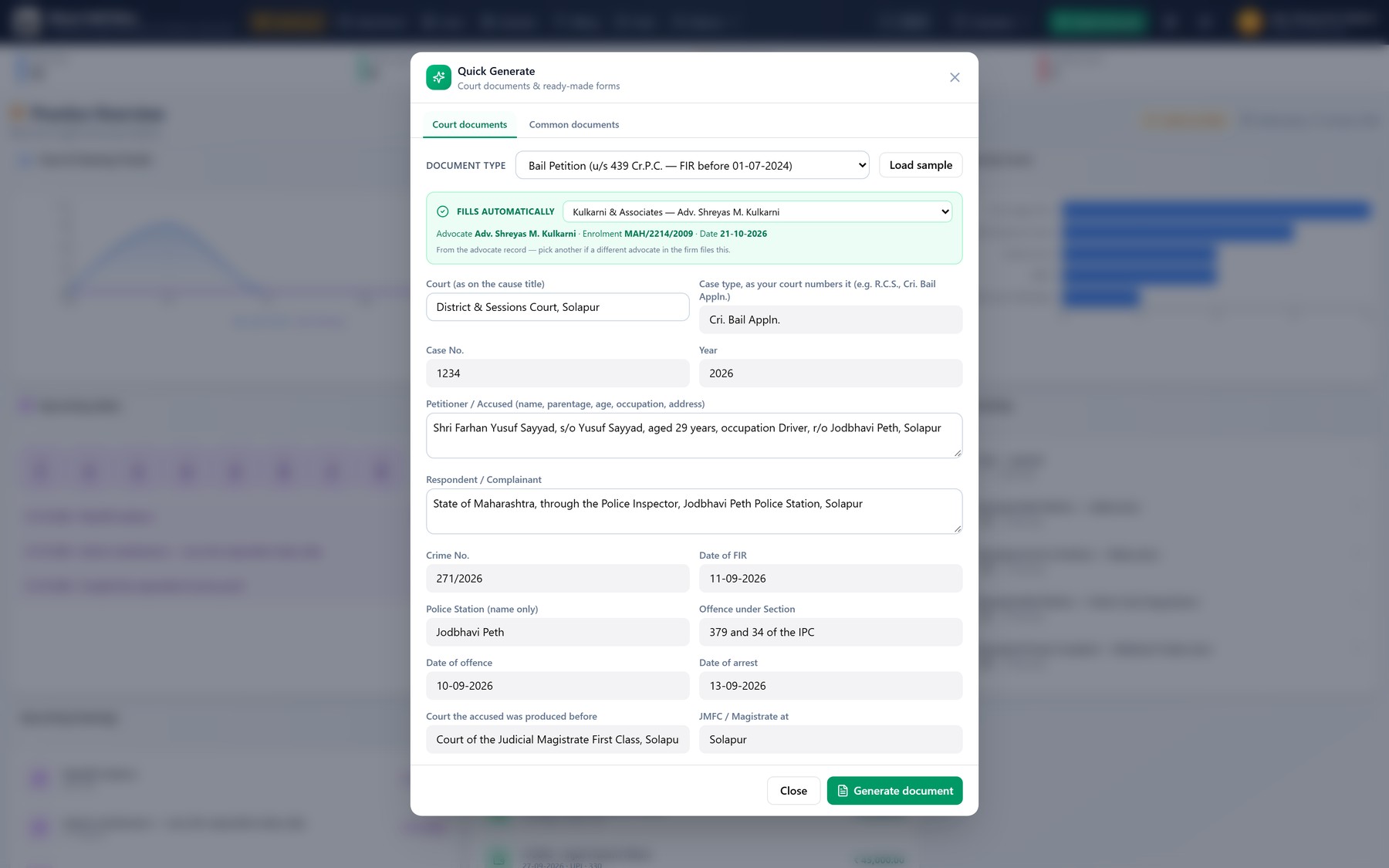
A one-off document without creating a matter first. Choose the type, fill the fields, generate. The finished file opens in Word, ready to review, print and file.

Quick Generate1234
  1. Court documents, and the common forms used alongside them.
  2. The document type — each with its own set of fields.
  3. Load sample fills the form with example data, so you can see the finished document before entering your own.
  4. Generate. The .docx is written to your practice folder.
  • The built-in formats cover Bail Petition and Private Complaint — each in a BNSS version and a Cr.P.C. version for matters begun before 01-07-2024 — Suit for Declaration, Suit for Partition and Divorce Petition (HMA s.13).
  • Every format opens with the court heading, filled from the court; formats carry no regional wording, so they suit any court.
  • Generating from inside a matter instead files the document against that matter and keeps it on the record.

Documents from a case

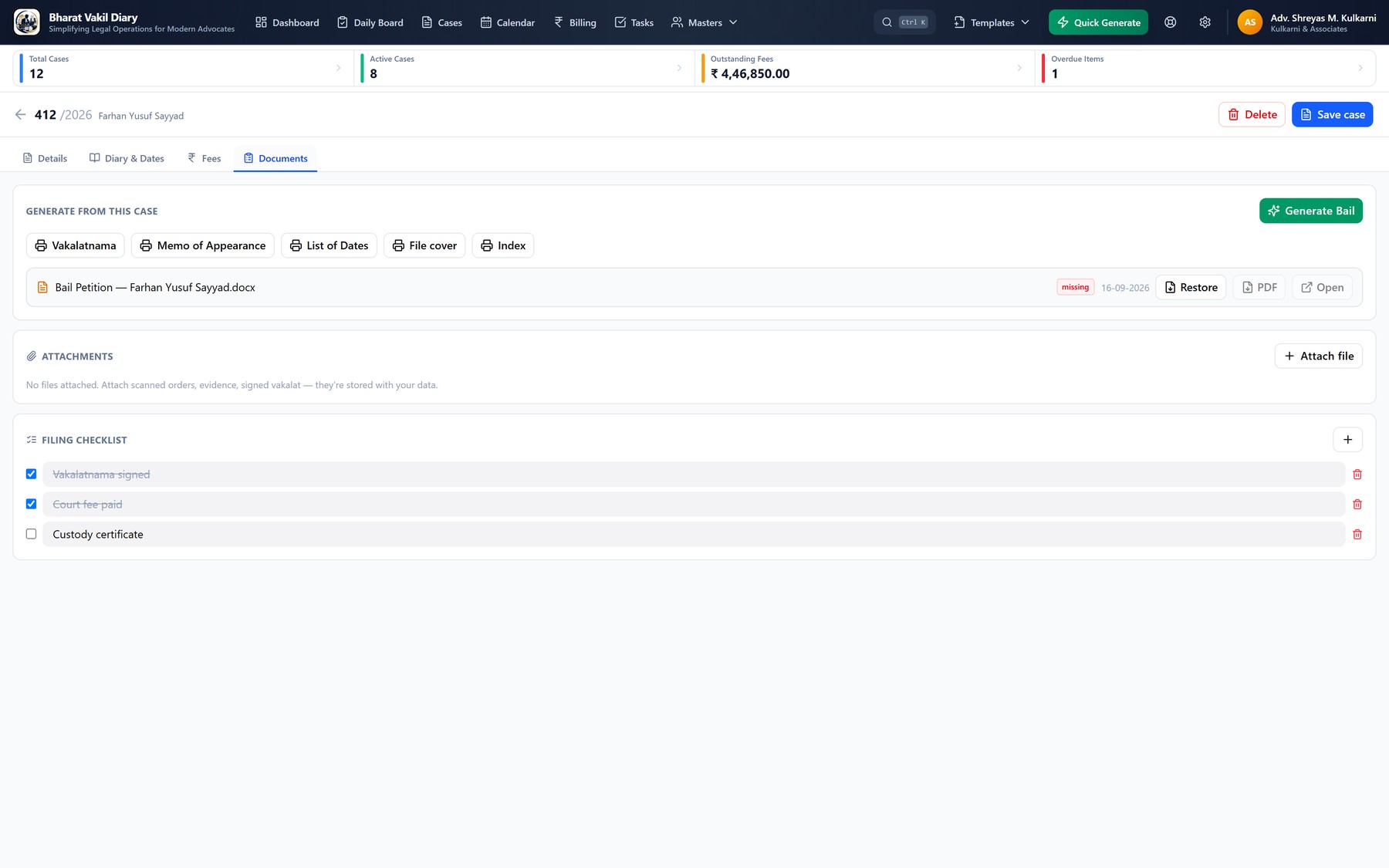
From a matter's Documents tab, the particulars you already entered fill the court format — and the forms that go with it print in one click.

Documents from a case1234
  1. Generate the petition from the case particulars, as an editable Word file.
  2. Print the Vakalatnama, memo of appearance, List of Dates, file cover and index — already filled from the case.
  3. Each generated document: open it in Word, or print a PDF in its true Word layout.
  4. Attach scanned orders and evidence; they are stored with your data.
  • A generated document is also kept as a soft copy: delete the working file and it can be restored from here.

Your document templates

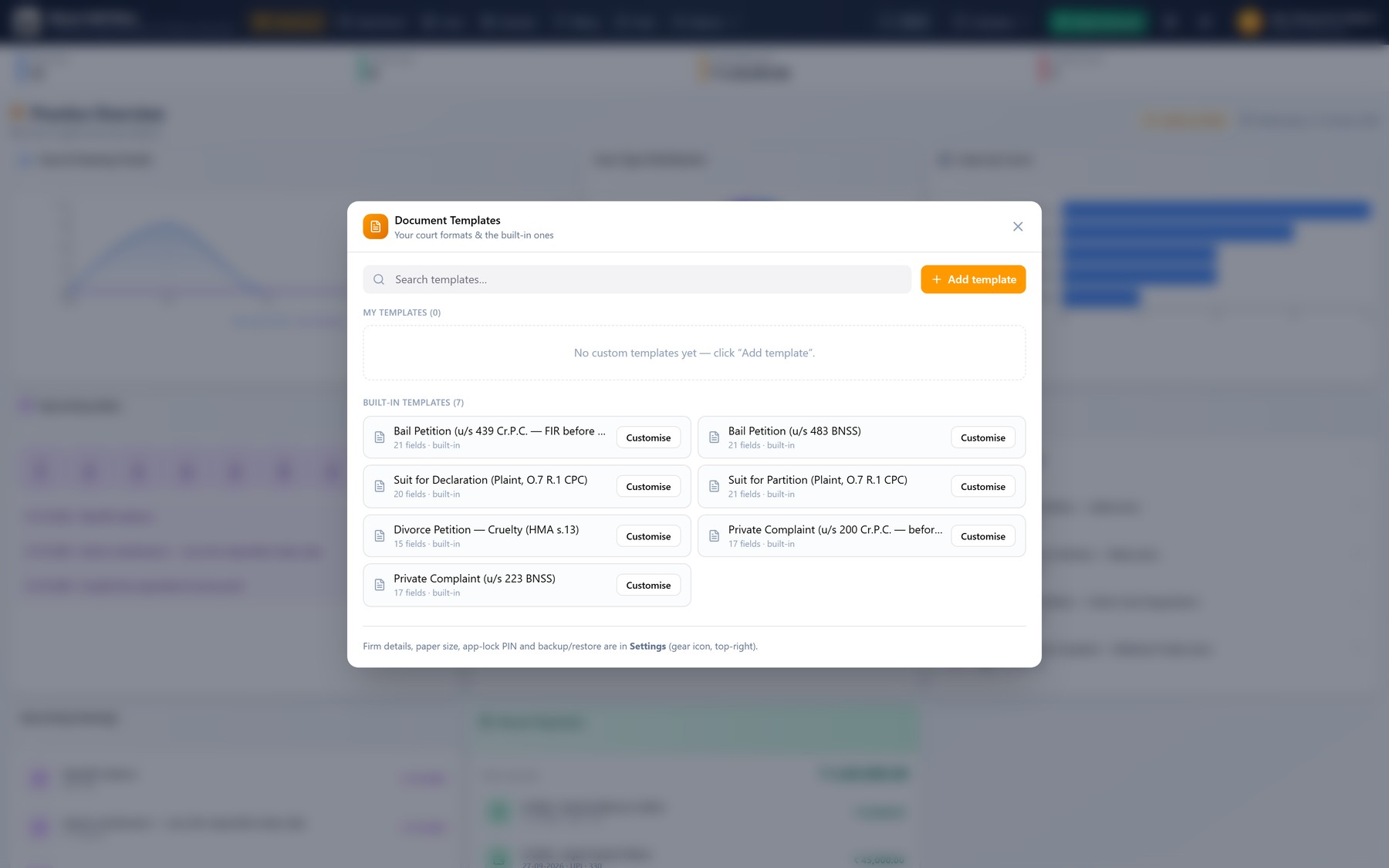
The built-in court formats and your own, side by side in one picker. Your formats behave exactly like the supplied ones.

Your document templates
  • Formats from the Template Library — shared by advocates and reviewed before publishing — arrive here in a click, and you can contribute your own.
  • Templates are stored with your data, so they are covered by the same backup.

Adding your own court format

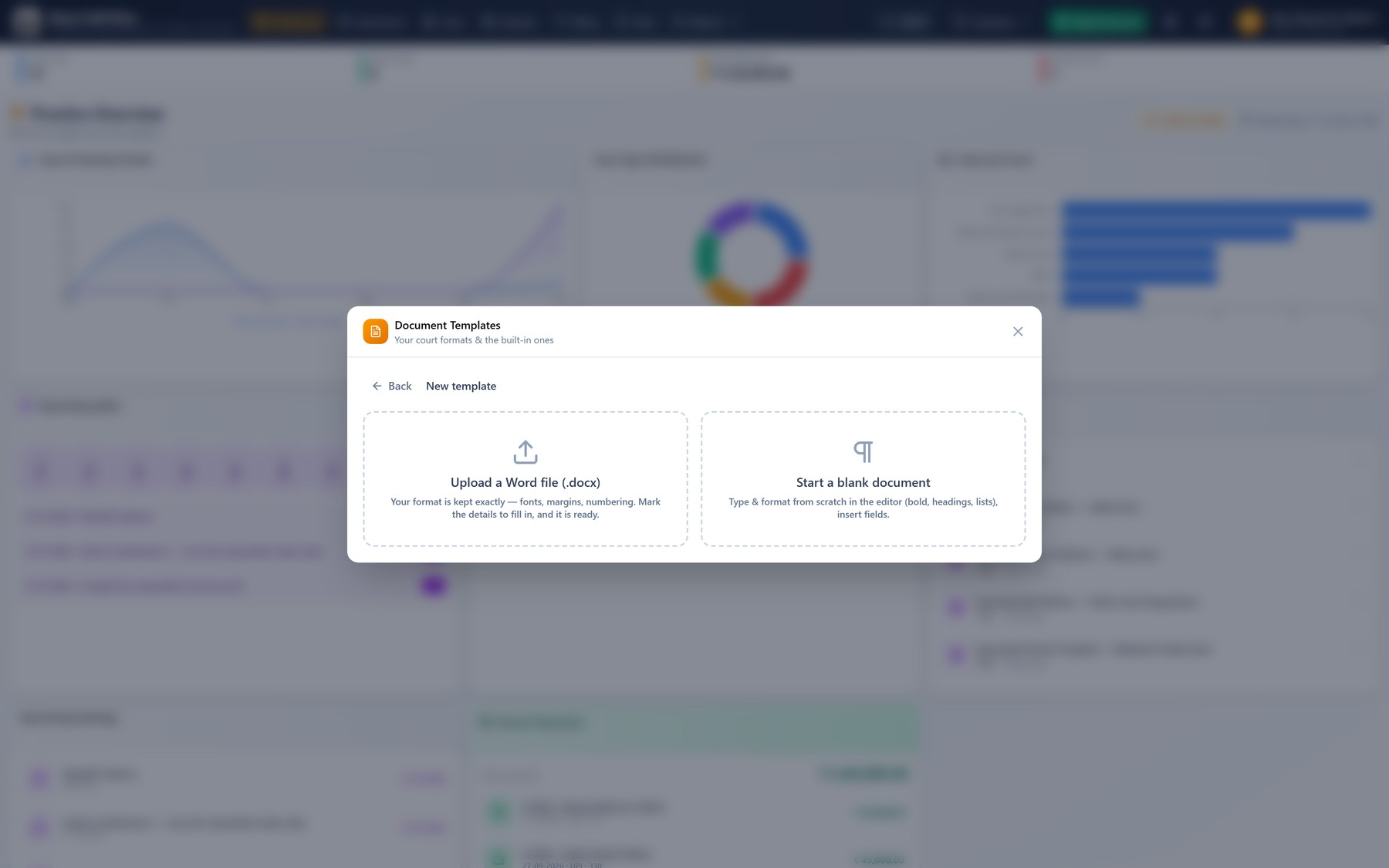
Every court and every advocate has preferred formats. Upload your own Word file, or type one from scratch, and tag the blanks so the application can fill them.

Adding your own court format123
  1. Start a new template.
  2. Upload your own .docx. Your fonts, spacing and layout are kept exactly.
  3. Or type and format one from scratch in the built-in editor.
  • In Word, write a detail's name in curly braces where it goes — {Petitioner Name}, {Date of Arrest}, {Court Fee} — in English or Marathi. Blanks typed as ____ can be turned into fields in one click.
  • Once saved it appears in the document picker beside the built-in formats.

Setting up the fields — or customising a built-in format

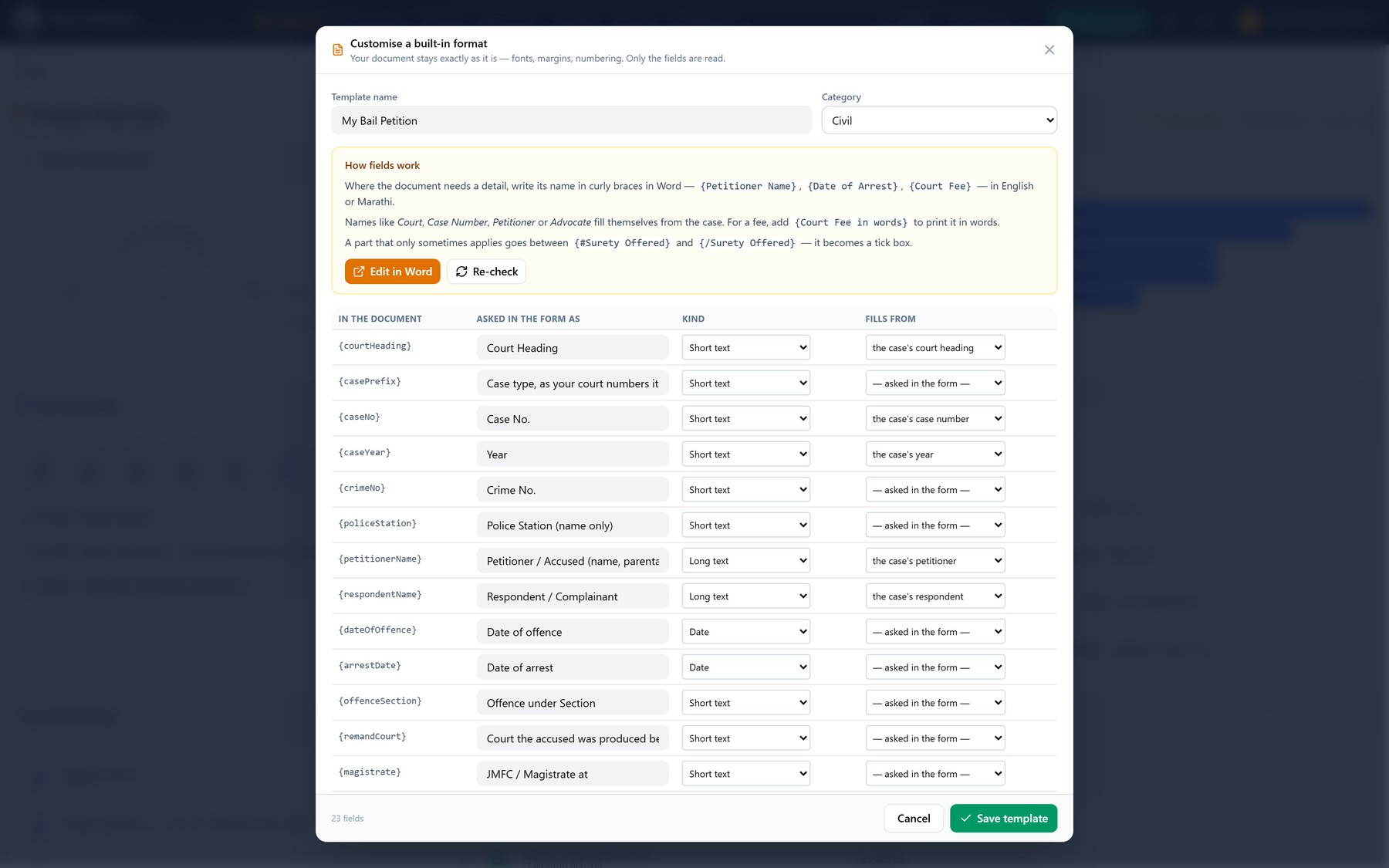
Every field the application found in your Word file, with what the form asks and where the answer comes from. Customise on a built-in format opens the same screen with your own copy.

Setting up the fields — or customising a built-in format1234
  1. Open your copy in Word, change any wording, save — then Re-check.
  2. What the form asks for each field. Rename any of them.
  3. The kind of answer: short or long text, a date, an amount (printed in words too), a choice, or a yes/no part.
  4. Fields the case already knows fill themselves — court and court heading, case number, parties, advocate, today's date.
  • Your version is kept under My templates; the original built-in format is not changed.

Your records

Clients, opposing parties, courts and advocates are recorded once and linked to matters — so a name is spelled the same way on every document, for years.

Clients

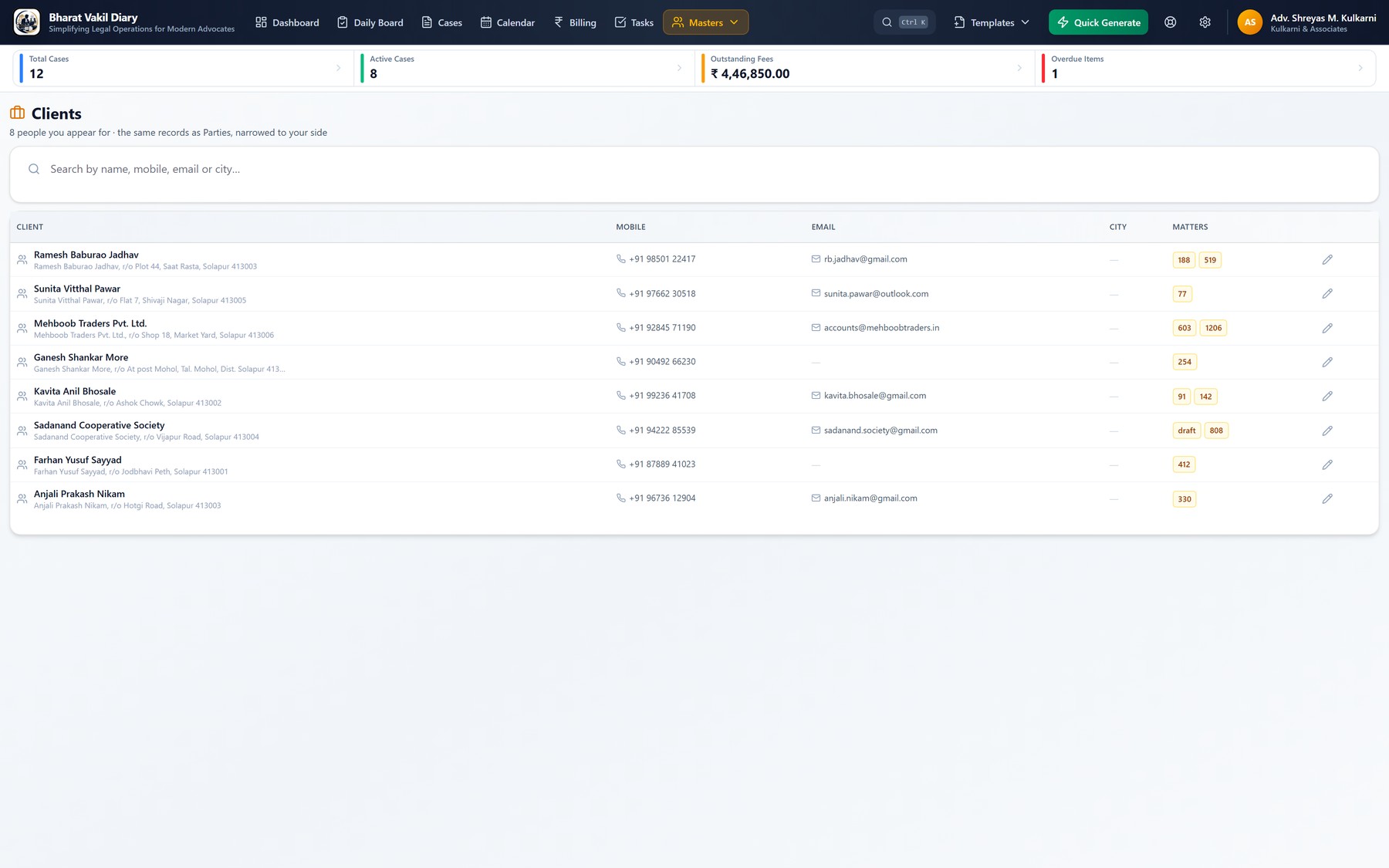
A directory of your clients with their contact details and the matters they hold.

Clients
  • Searchable by name or mobile number.
  • Linking a matter to a client means the client's details fill themselves in on every document.

Parties

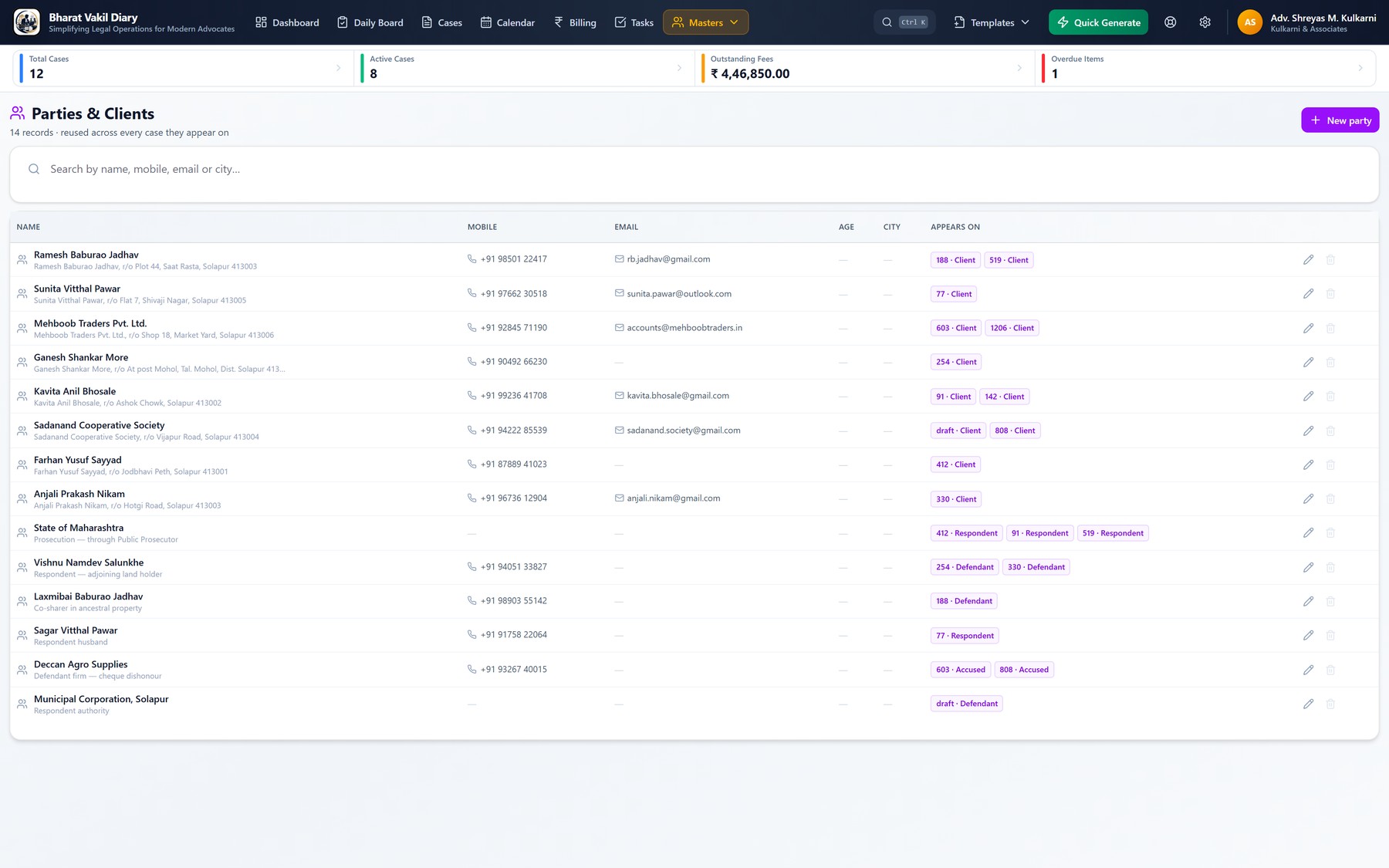
Search a party's name and see every matter that party appears in, with the role they play in each — petitioner, respondent, plaintiff, defendant, accused.

Parties
  • Useful when the same opponent, authority or firm recurs across matters.
  • Click through from a party straight into the matter.

Courts

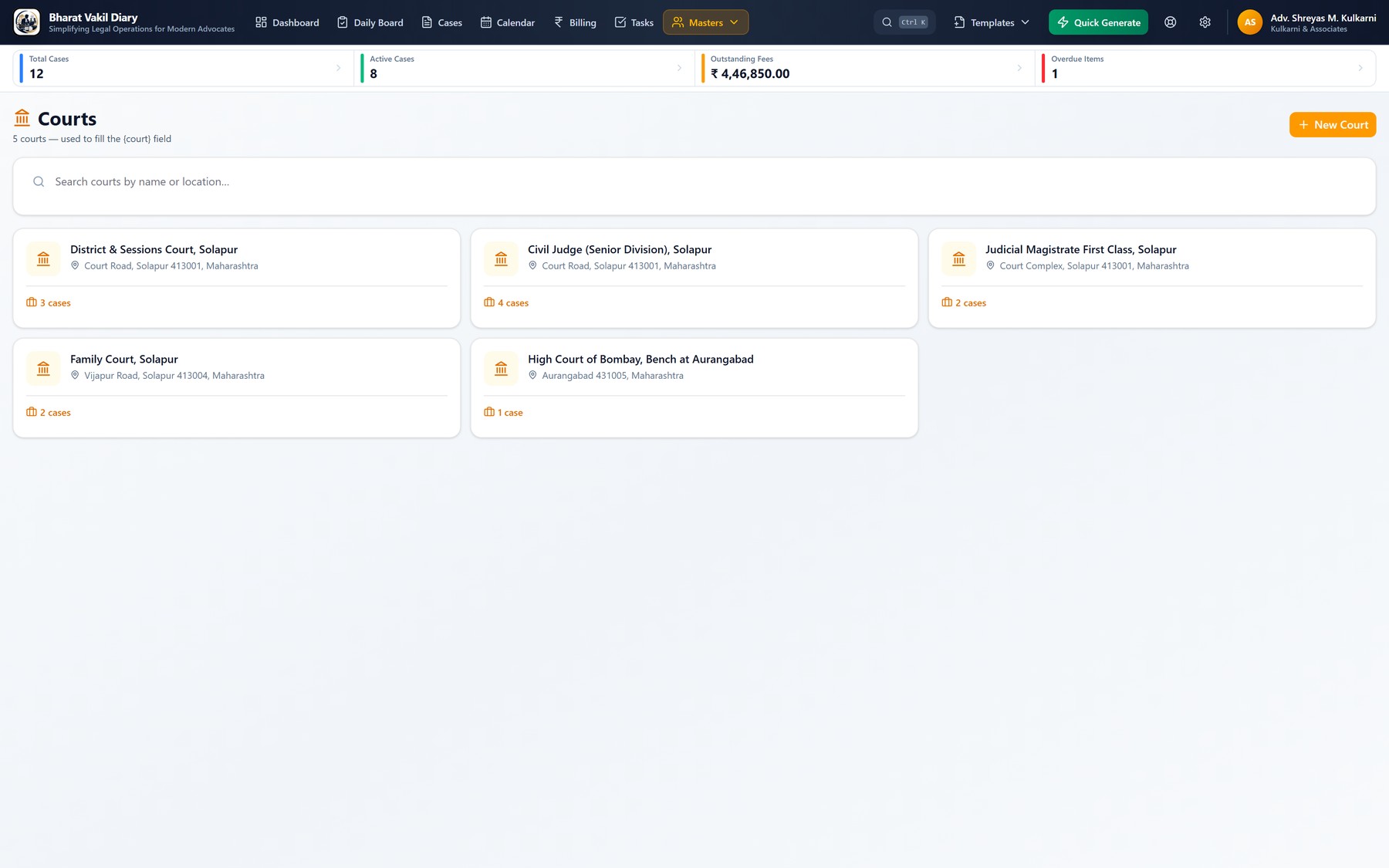
The courts you practise before, recorded once with their full description and address.

Courts
  • A matter linked to a court record carries the court's exact name onto every document generated from it.

Advocates

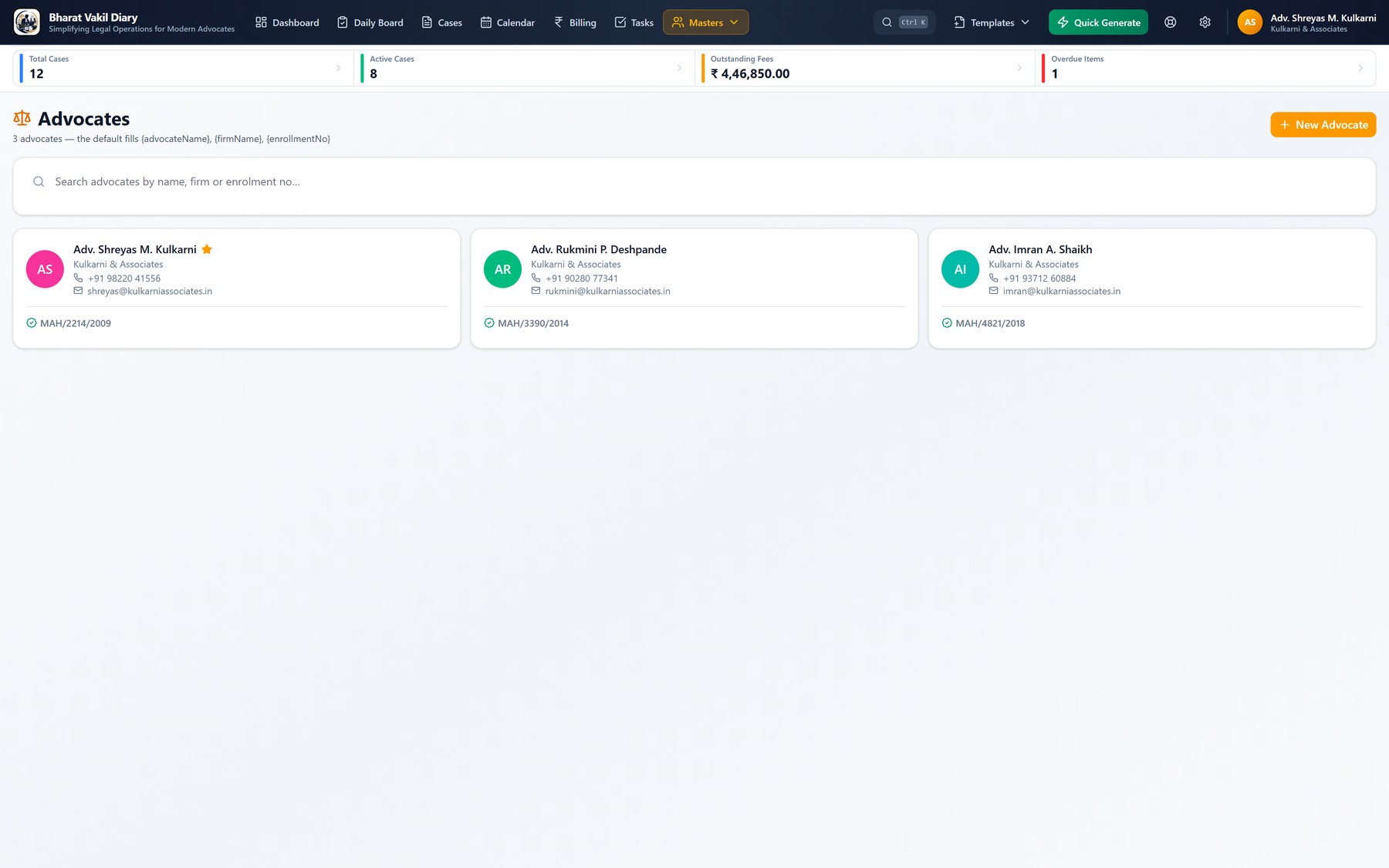
The advocates in the firm, with enrolment numbers and contact details, and one marked as the default for new matters.

Advocates
  • Each matter records the advocate on record, so documents and bills carry the right name.
  • Suits a sole practitioner and a small firm equally — one advocate, or several.

Everyday conveniences

The details that make the application quick to live with.

Search everything

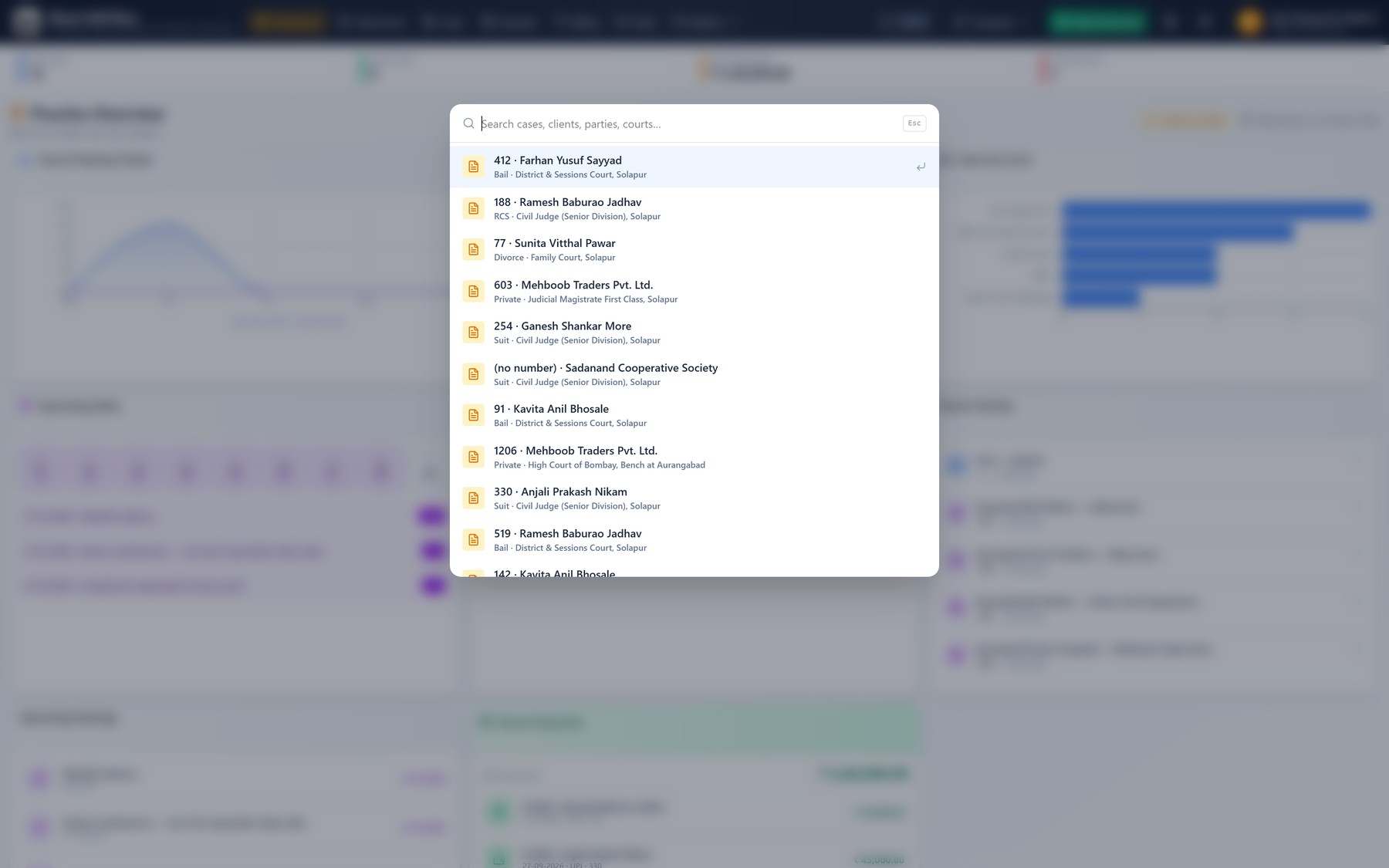
Ctrl + K from anywhere opens a single search across matters, clients and parties — by name, case number or CNR.

Search everything
  • Faster than navigating, once the practice grows past a screenful of matters.

Settings

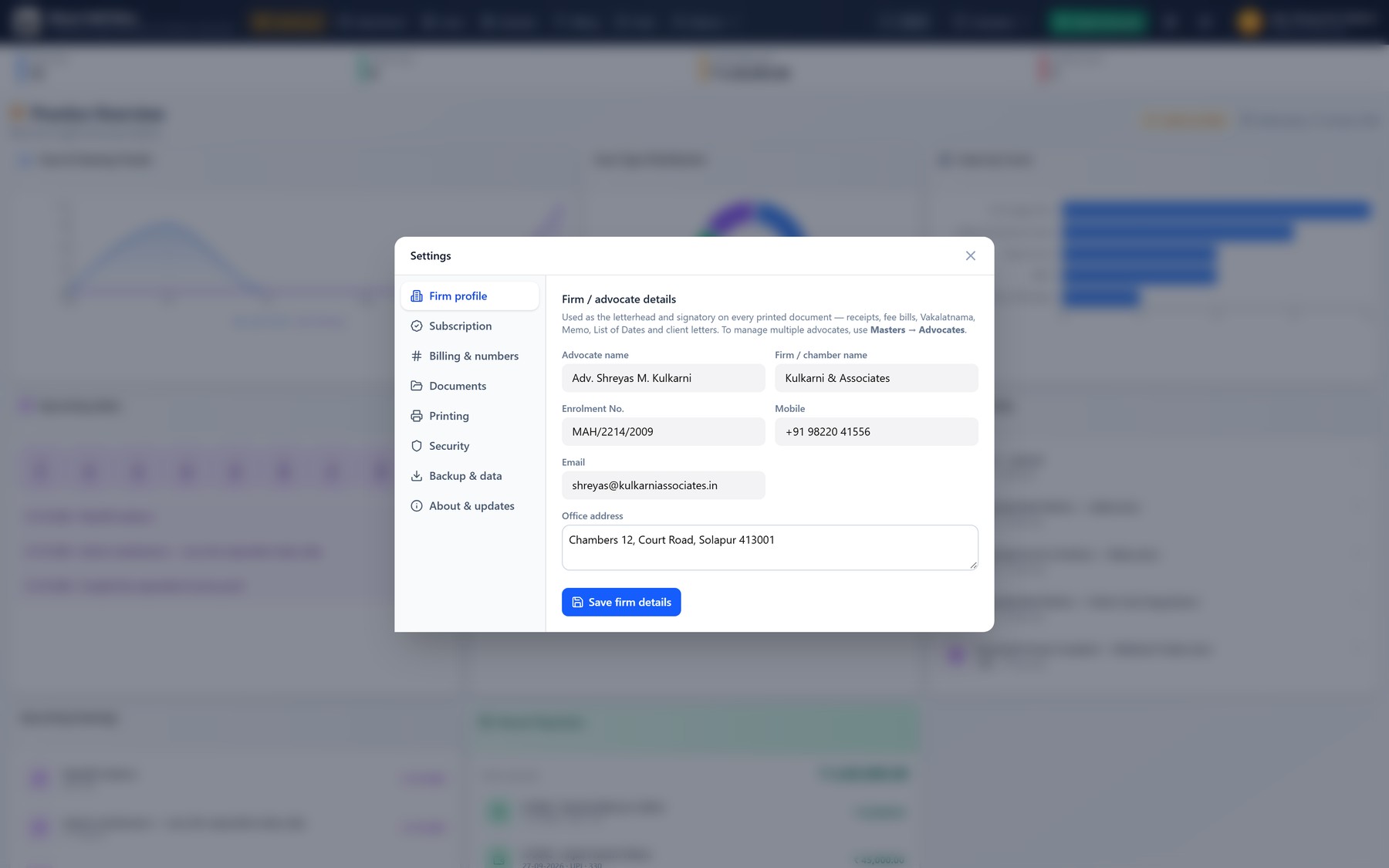
Your firm's identity, where documents are saved and how they are named, the paper size and font used for generated documents, and the numbering of receipts and bills.

Settings
  • Documents can be filed into sub-folders per case or per client automatically.
  • Set the font and size used in generated documents to match what your court expects.
  • Backup and restore tools live here, alongside a screen lock PIN.

Help & support

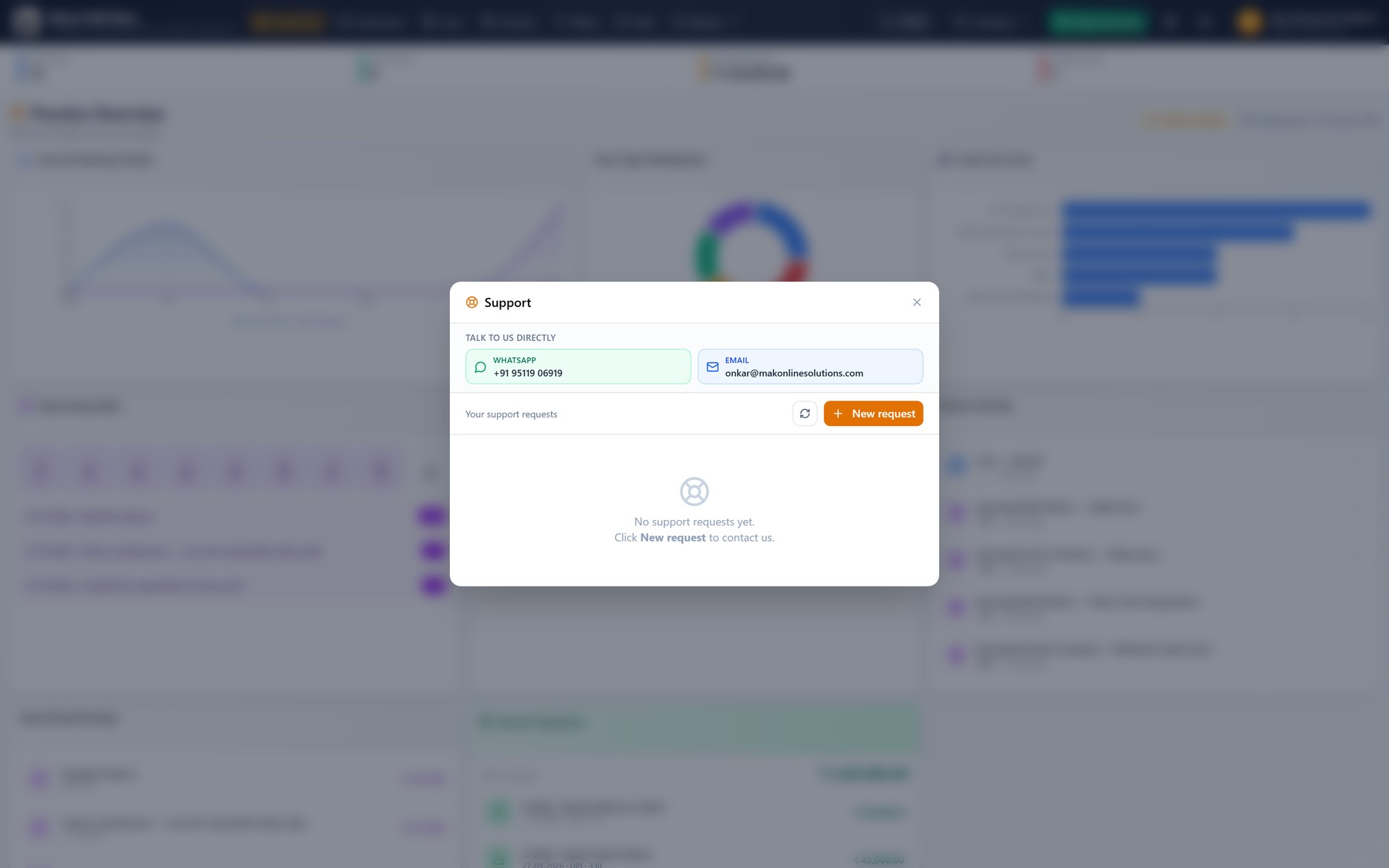
Reach us from inside the application — a support request, or WhatsApp and email with your computer's details already written in.

Help & support
  • Your computer's ID and licence identify you, so a request does not need explaining twice.

Everything, in one table

For the reader who skipped the pictures.

Case managementEvery matter with client, court, parties, particulars, hearings, diary, checklist, attachments and history. Draft and filed matters kept distinct; filed identity locked and corrected only by recorded amendment.
eCourtsImport matters by CNR or from an eCourts search inside the application; update a matter from its eCourts page.
Court documentsBail Petition and Private Complaint (BNSS and Cr.P.C. versions), Suit for Declaration, Suit for Partition and Divorce Petition supplied as ready formats, each headed with your court. Generated as Word .docx, from a matter or as a one-off.
Your own formatsUpload any .docx court format or write one in the editor; set each field's kind (text, date, amount in words, choice, yes/no). Fonts and layout preserved. Customise a built-in format into your own copy.
Template LibraryFormats shared by advocates and reviewed before publishing, added in a click; contribute your own.
Dates and limitationThe Daily Board for each day's matters; a month calendar with hearings, tasks, follow-ups and limitation dates; a printable cause list; a limitation calculator; one reminder a day.
Fees and billingAgreed fees, expenses, numbered bills and receipts, part-payments, and outstanding dues across the practice and per matter.
RecordsClients, parties, courts and advocates recorded once and linked to matters, so names and courts stay consistent across years of documents.
Works offlineRuns entirely on your computer. The internet is needed once, to activate. No cloud server, and no matter data leaves the machine.
Your data, your folderMatters, documents and templates live in one folder you choose. Copy it and you have a complete backup.

What you need to run it

Operating systemWindows 10 or Windows 11, 64-bit
InternetNeeded once, to activate. Not needed thereafter
Word processorMicrosoft Word, or any application that opens .docx, to review and print
LicenceOne activation key per computer; transferable to a new machine
Data locationA folder you choose on your own drive — nothing is stored on our servers

Try it, then licence it

The trial is the full application. Nothing you enter during it is lost when you activate.